
Replace Path with Flow on your Dashboards
How-to guide
A list of Dashboard links containing Path reports will be provided by your CSM.
1. Locate the Path Reports
Once you open the Dashboard you need to scroll down and find any Paths. When you find one, open it by clicking on the chart header:
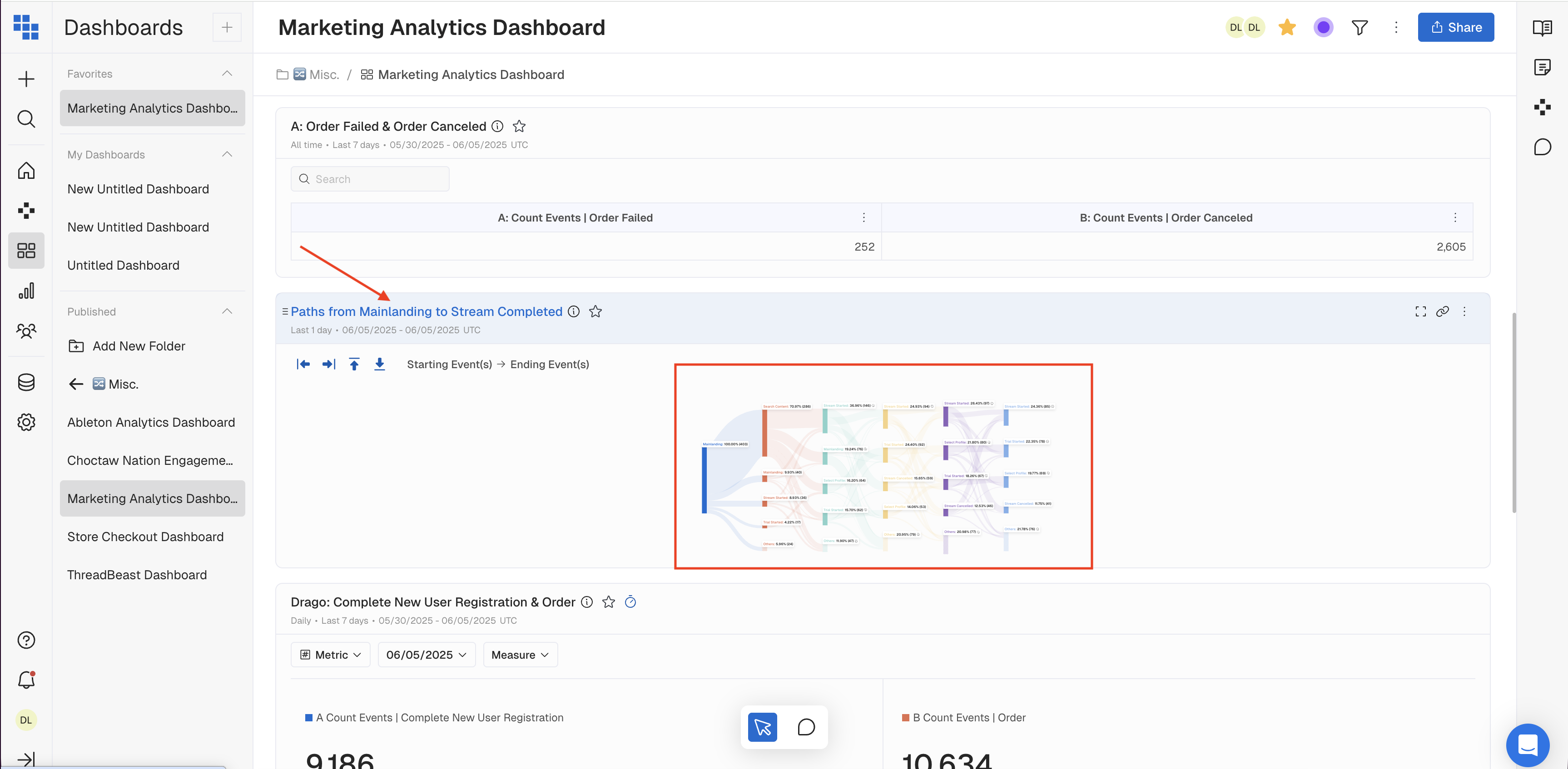
2. Convert Path to Flow
One you've opened the Path report scroll down to the Next Steps section below the chart. Click on Flow to automatically transfers all your parameters directly into the Flow builder, saving you manual configuration time:
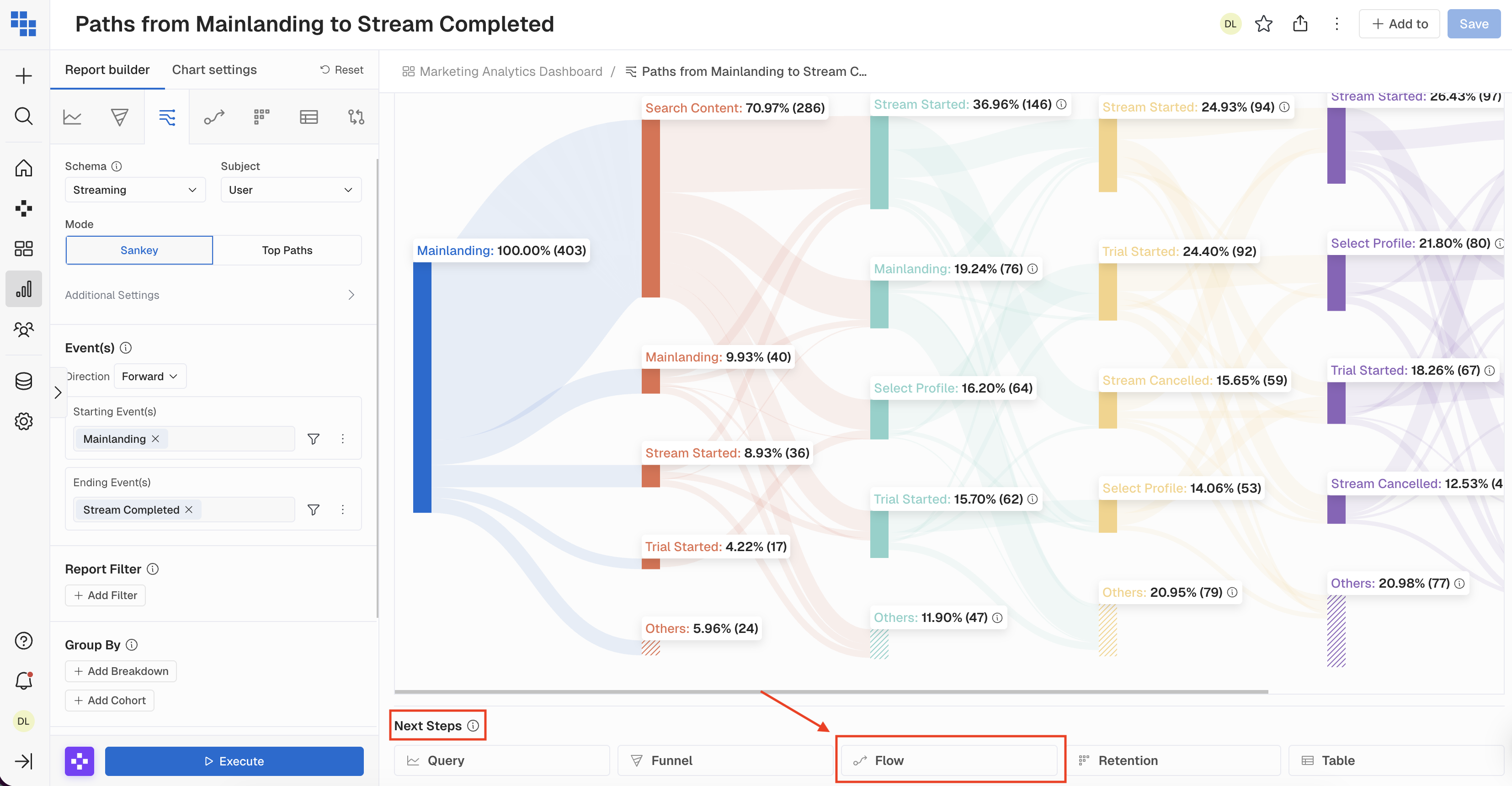
3. Execute the new Flow report
Review the transferred parameters in the Flow Builder to make sure they were transferred correctly. Once verified, click Execute:
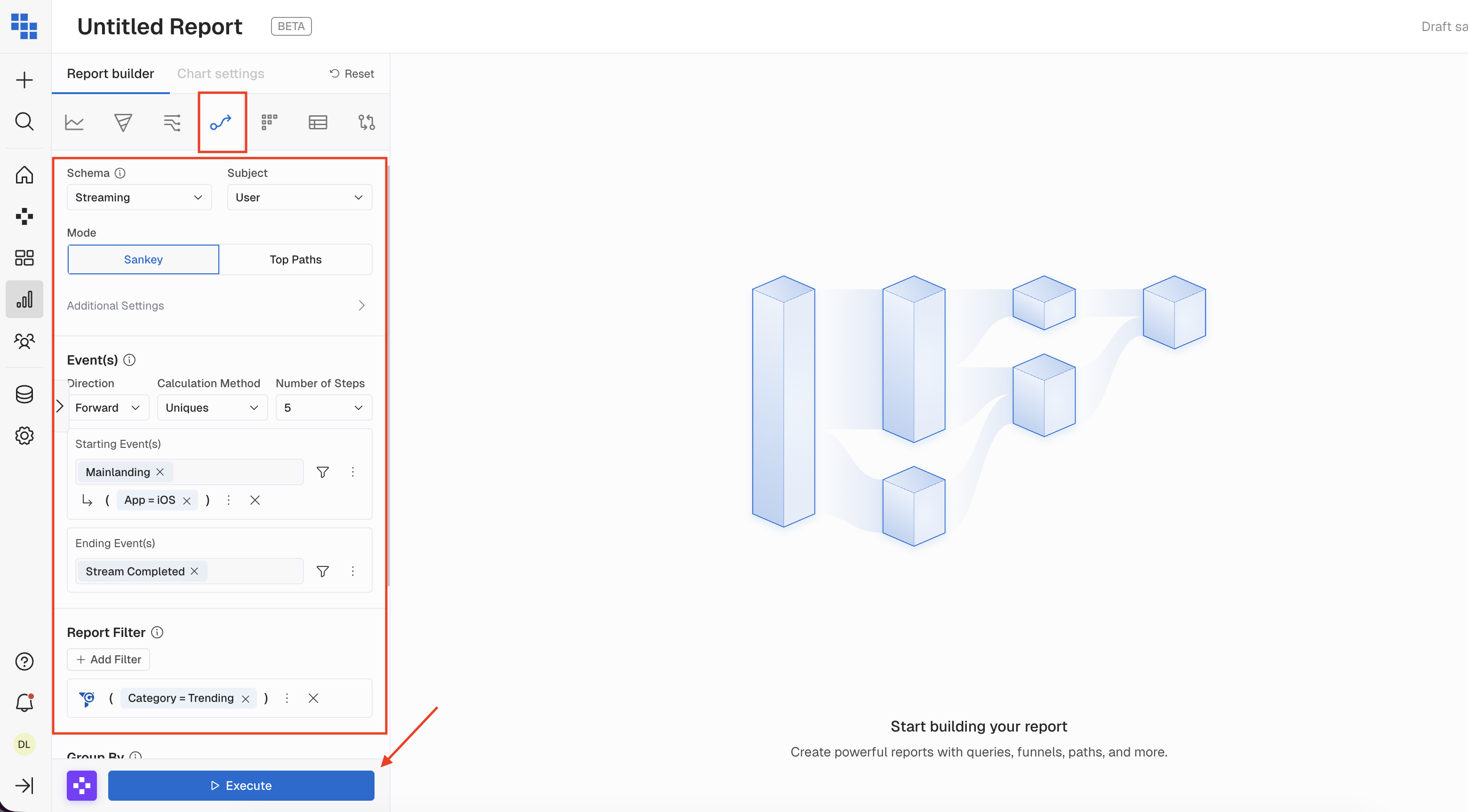
4. Replace Path with Flow on your Dashboard
Once the Flow chart is generated you're almost there!
4.1. Rename the new Report
In case you weren't using the auto-generated Report name, don't forget to transfer it to the new Report.
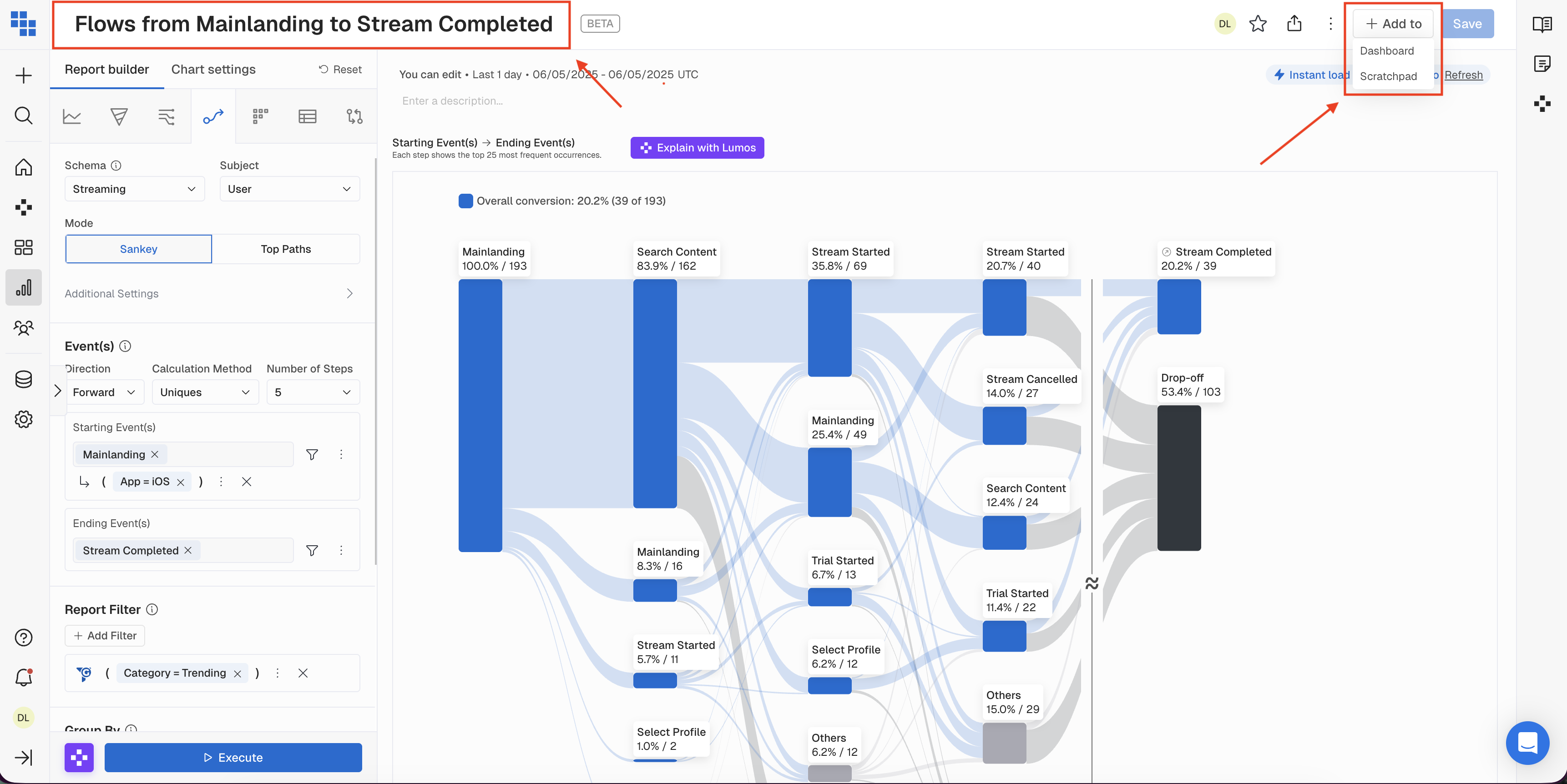
4.2. Add Flow chart to Dashboard
-
Go back to the Dashboard where you started
-
Scroll down to the Path chart
-
Hover over the gaps above/below/on the side of the chart to locate the
+icon and then selectExisting Reports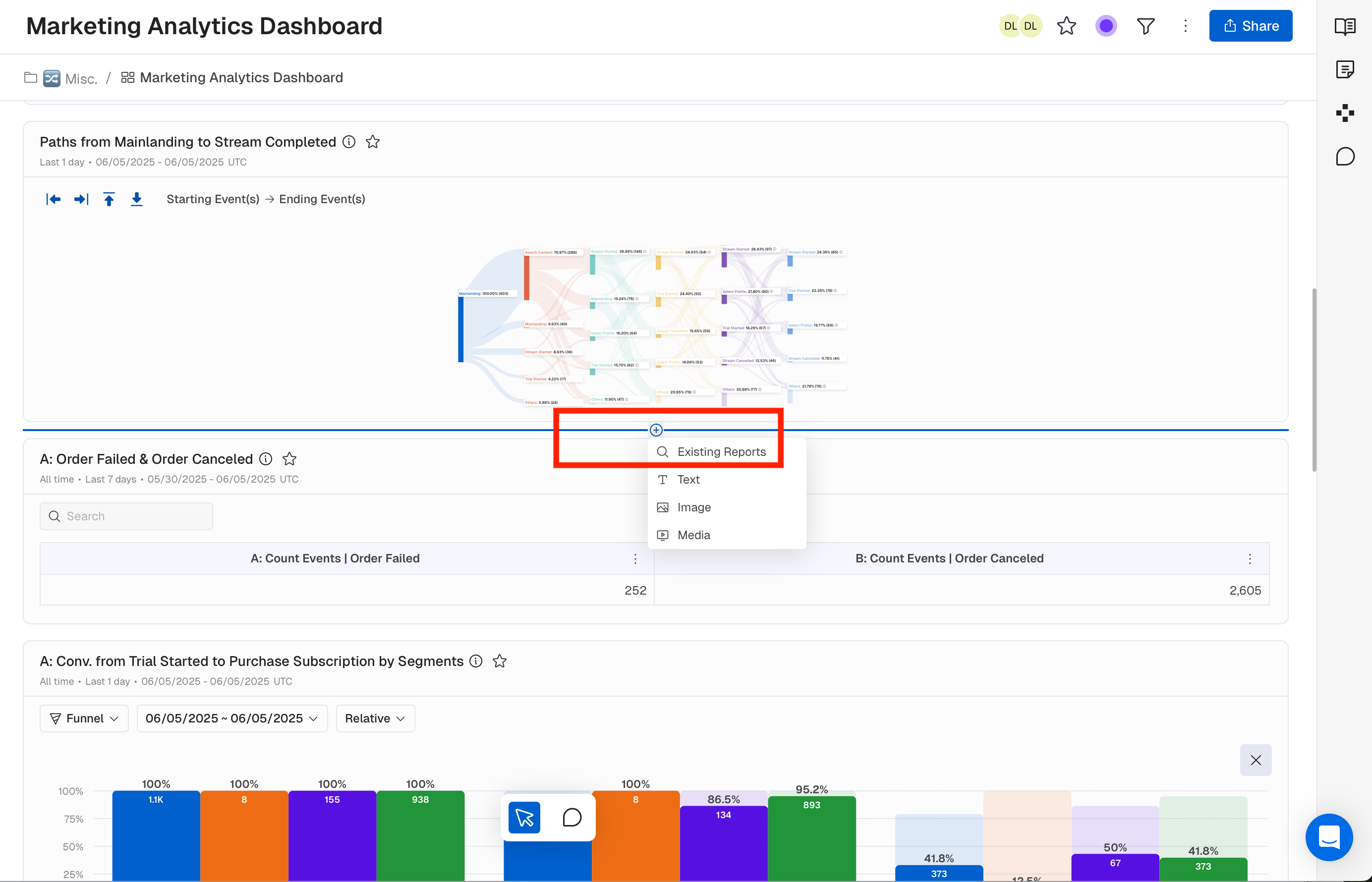
-
Lookup the chart you just created and select it
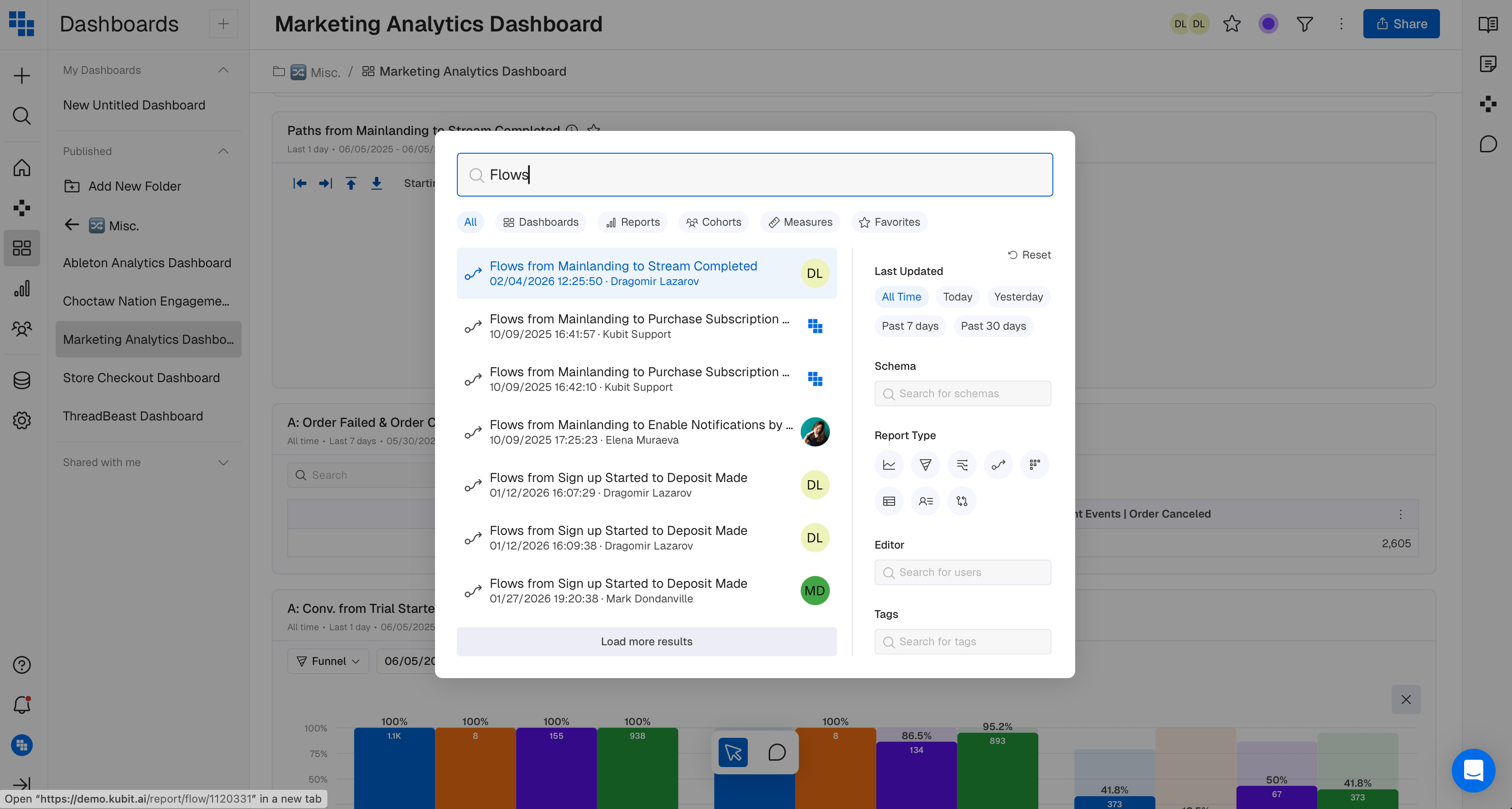
-
Now it's added exactly next to your original Path report!
4.3. Remove Path from Dashboard
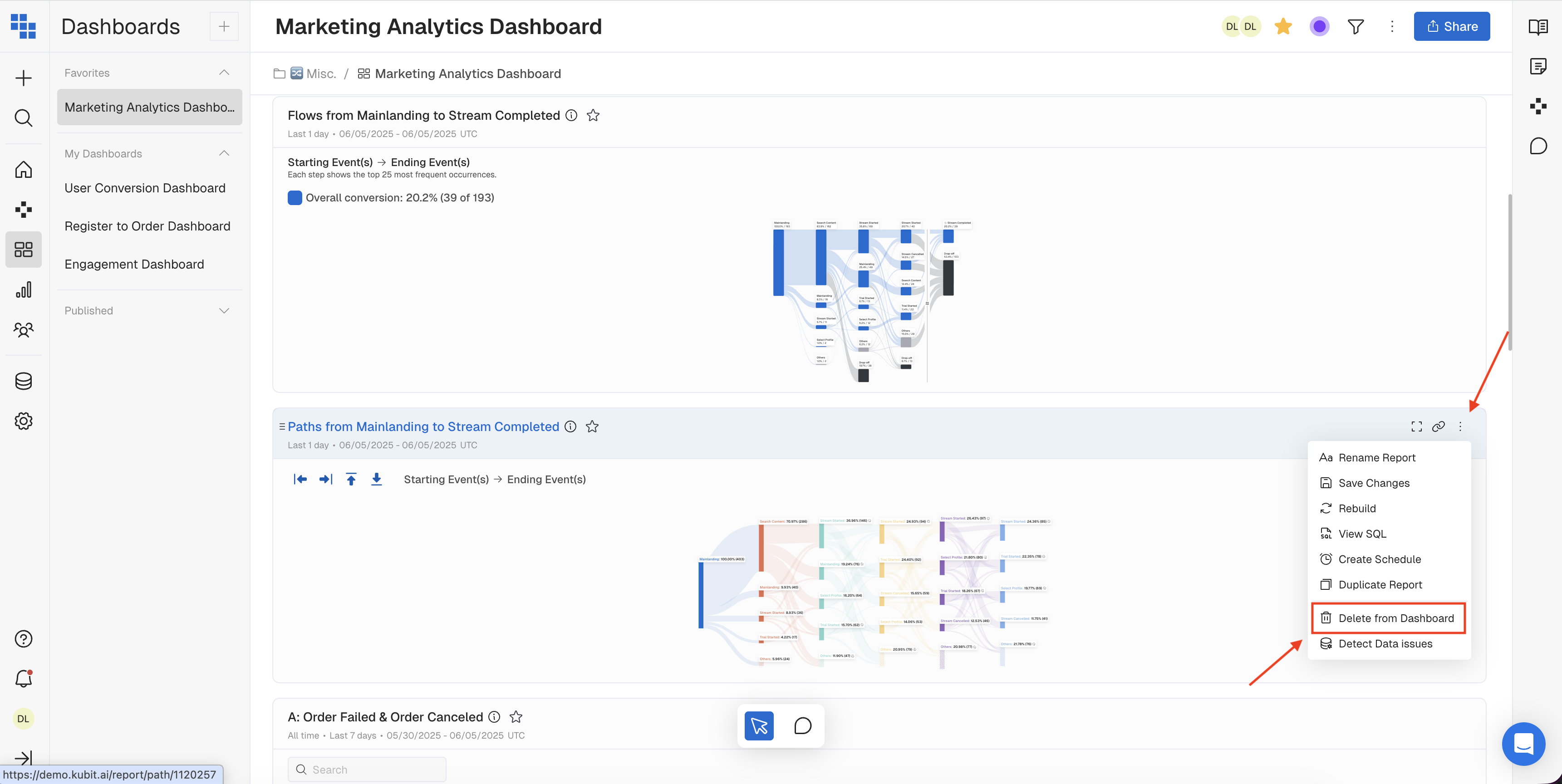
Don't forget to remove the legacy Path from the Dashboard.
- Open the context menu of the Path chart on the Dashboard
- Select
Delete from Dashboard
Updated 3 months ago