

Lumos AI Readiness & AI Data Dictionary
What is AI Readiness?
Lumos AI Readiness is a diagnostic scoring feature designed to evaluate the health and accuracy of your data model for Kubit’s Agentic Chat Experience. It ensures that your underlying data structures, naming conventions, and event mappings are optimized so that Kubit's AI Agents can provide accurate, trustworthy insights.
AI Readiness must understand the intent behind the data, ensuring your team can trust the automated narratives and diagnostic reports generated by Kubit.
The readiness chip appears on the Lumos AI Chat and Data Dictionary screens so you always know your current status:
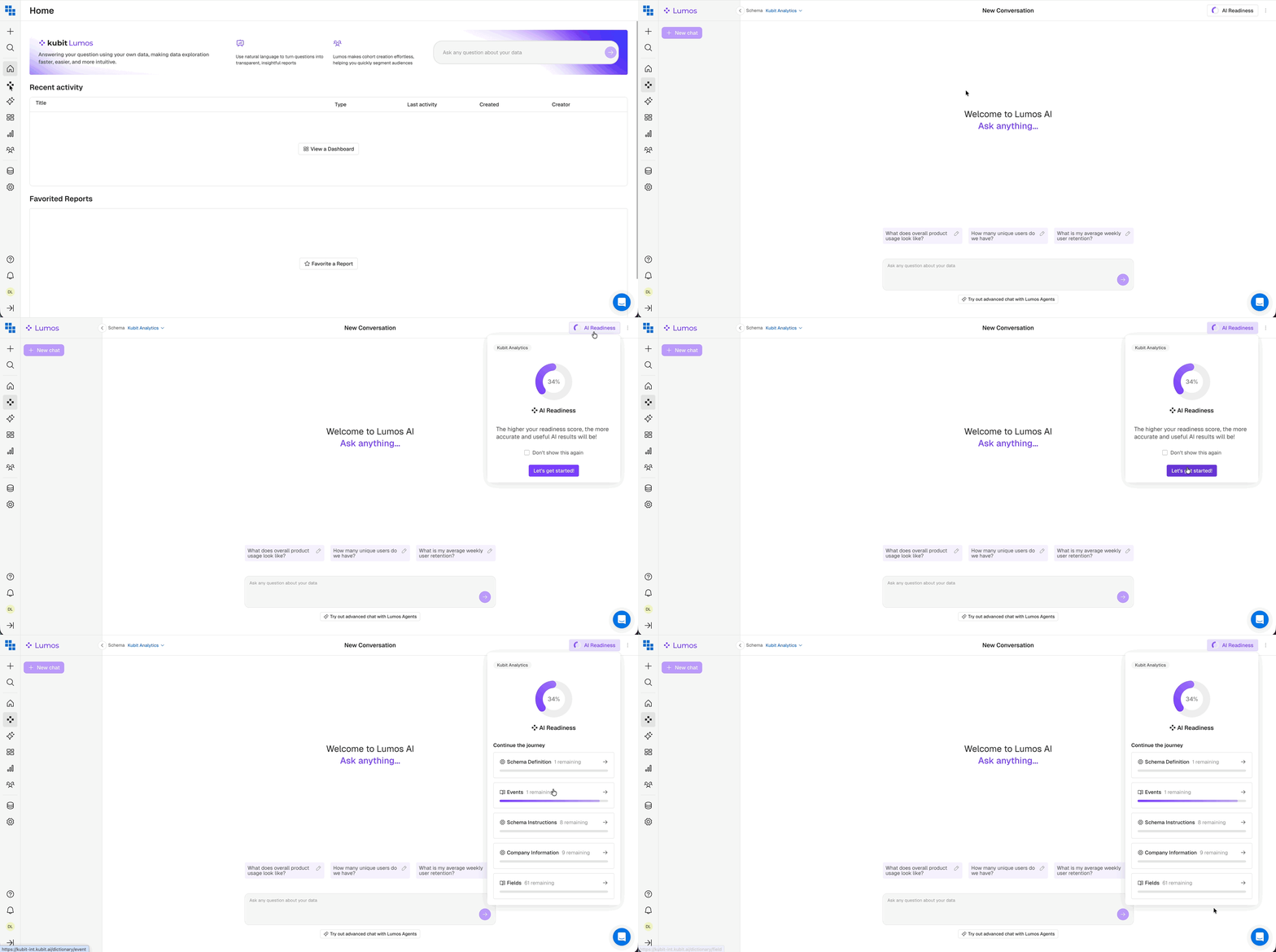
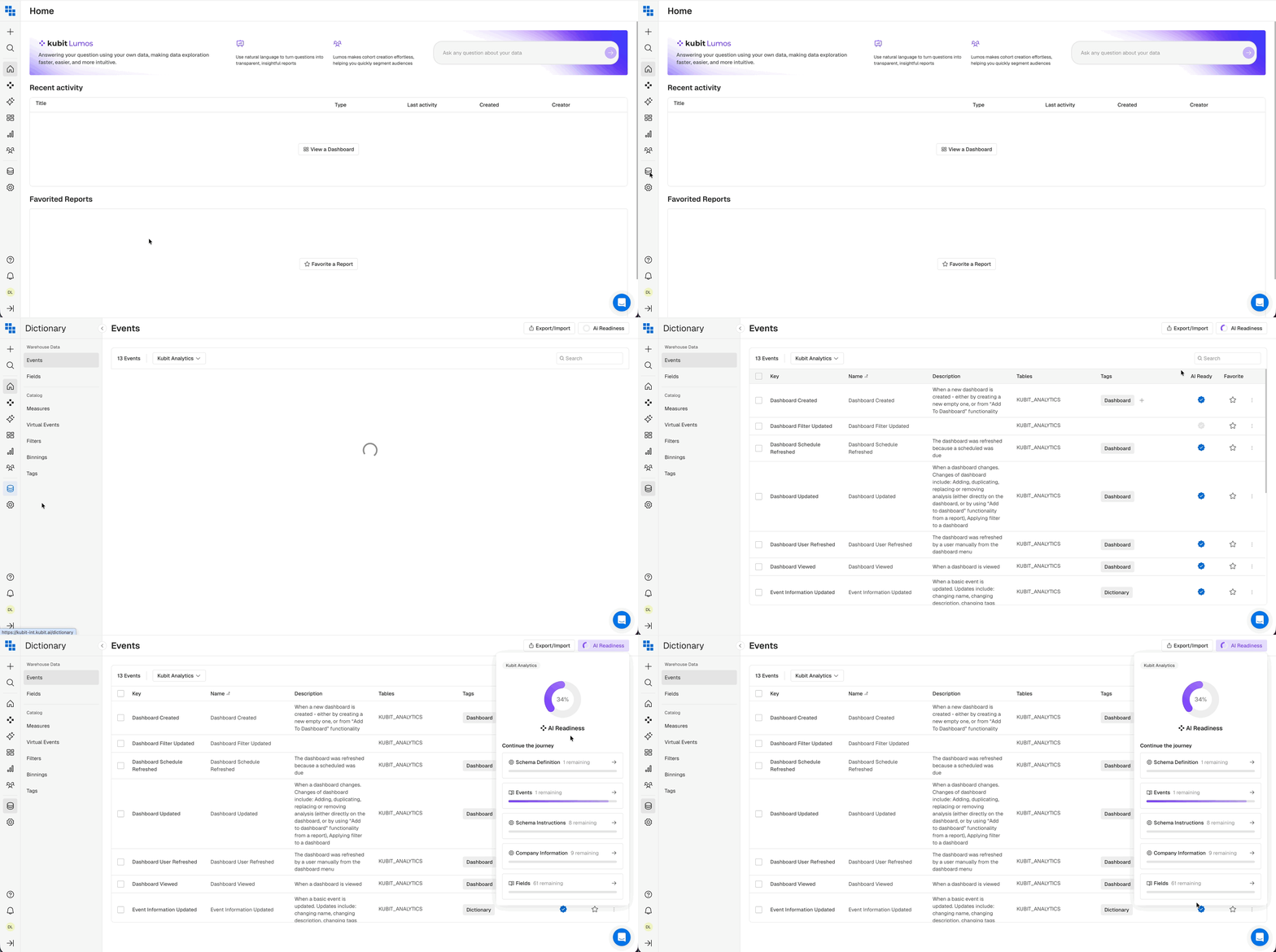
To achieve a high readiness score and reliable AI performance, you must complete the "journey" across these five key pillars:
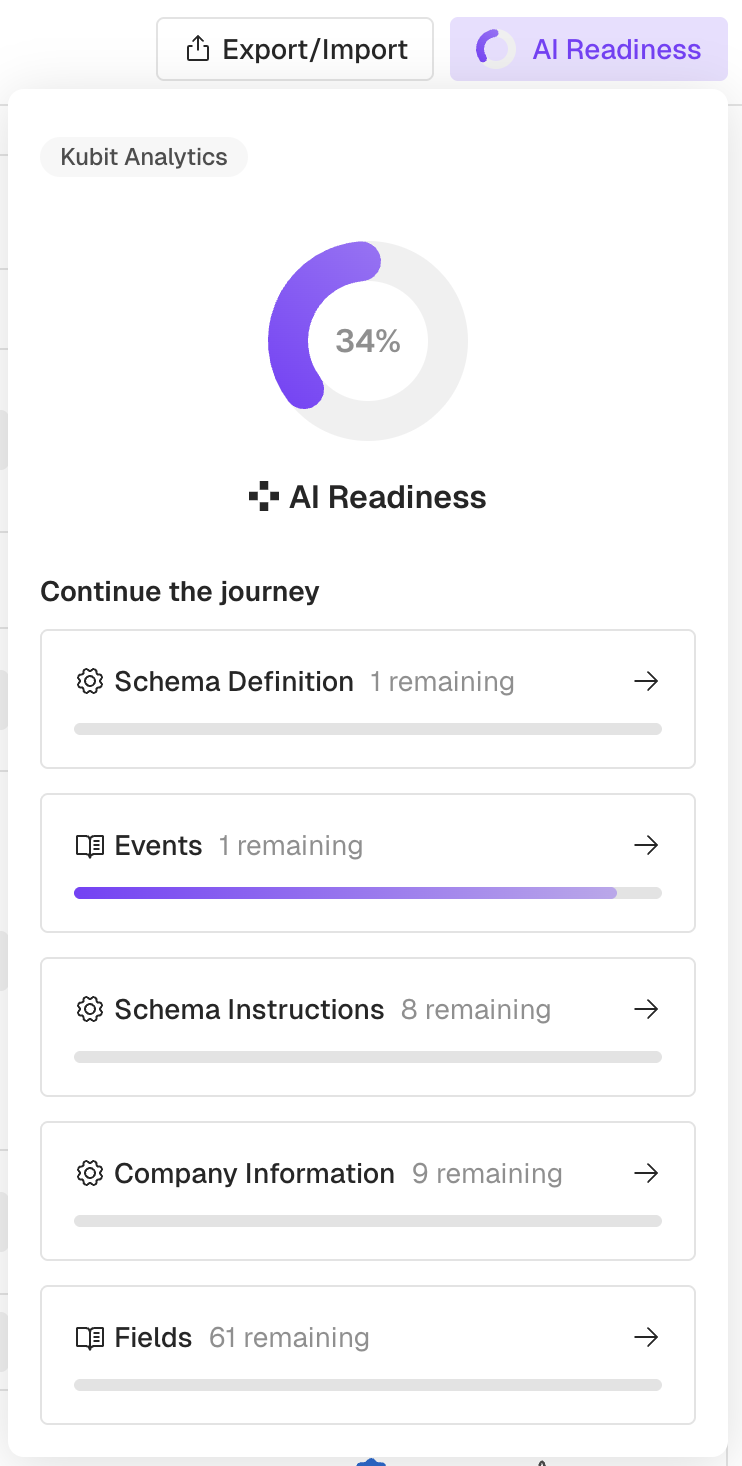
Schema Definition
This pillar focuses on the core structure of your data models.
Clear schema definitions prevent the AI from missing valuable information during its reasoning process.
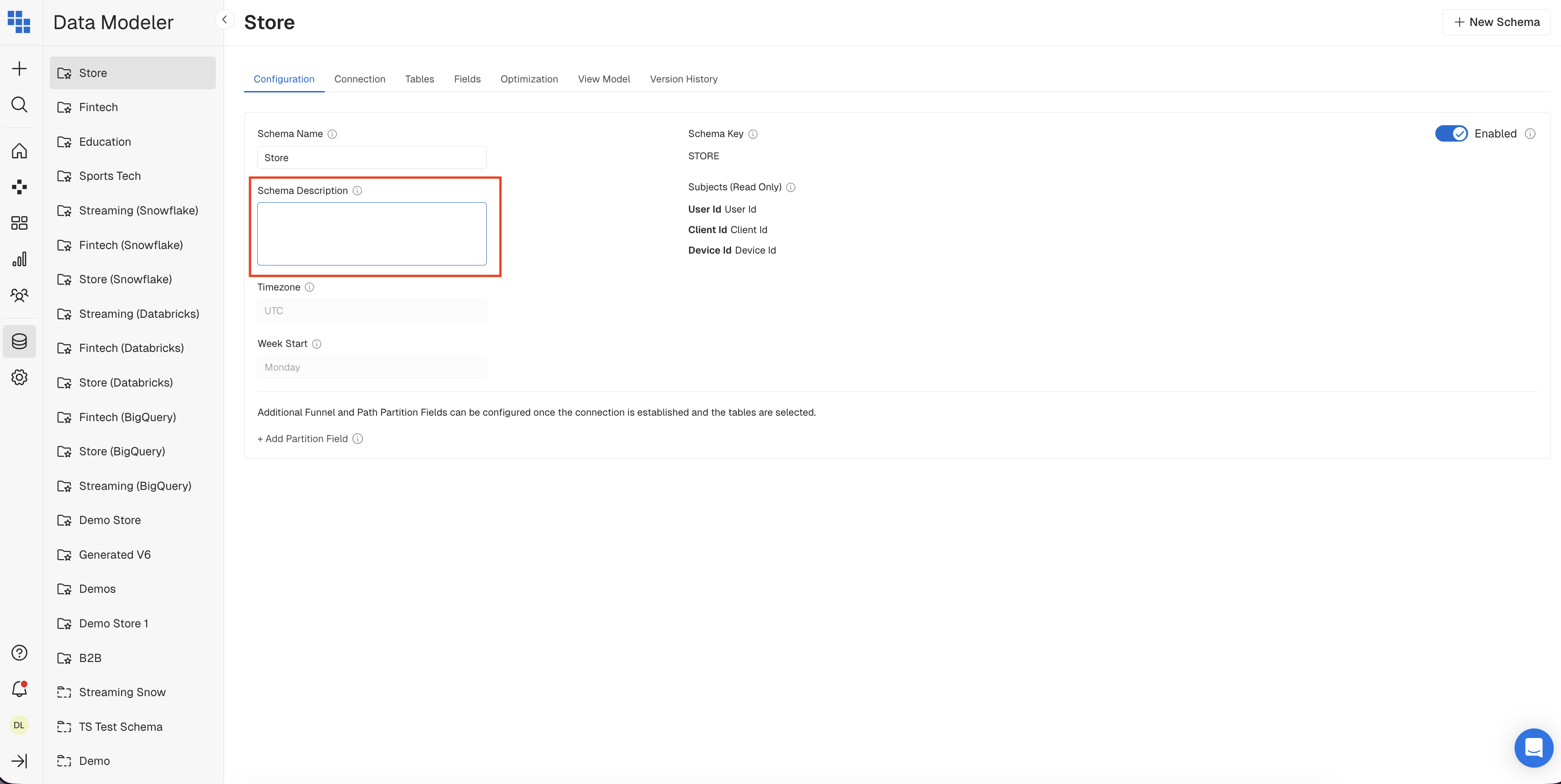
When you are done updating you Schema Description, don't forget to click Confirm at the top right corner of the page to apply all changes.
Schema Instructions
Beyond the raw structure, the AI needs specific guidance on how to use your schema.
We have provided you with a predefined company instructions template in your Kubit environment, ready for you to populate. It covers 8 key areas:
- Daily Active User (DAU)
- Key Conversion Events
- User Journey Stages
- "Aha Moment" / Value Realization
- Industry-Specific Terms
- Internal Product Terminology
- Acronyms & Abbreviations
- Key Definitions
Instruction Tips:• Write one instruction per line, using quotes to specify exact names or phrases (e.g. Use "completed_purchase" event for any revenue analysis).
• Format instructions as direct statements of the desired behavior—be specific!
• Define key metrics using your event and field names to ensure accuracy. (e.g. an active user is defined as subject = "User" and event name = "login" or "sign up").
Please make sure to ONLY populate the existing Schema Instruction template NOT replacing it with free text. Any additional information aside of the default 8 topics can be added at the end of the template and will be used for AI's reasoning analysis.
Providing custom instructions of your Schema are key components on defining join logic for AI Kubit Agents.
You can navigate to the "Schema Instructions" section either through the Setting Menu > AI Settings on the left left-hand side navigation or through clicking on the AI readiness chip directly:
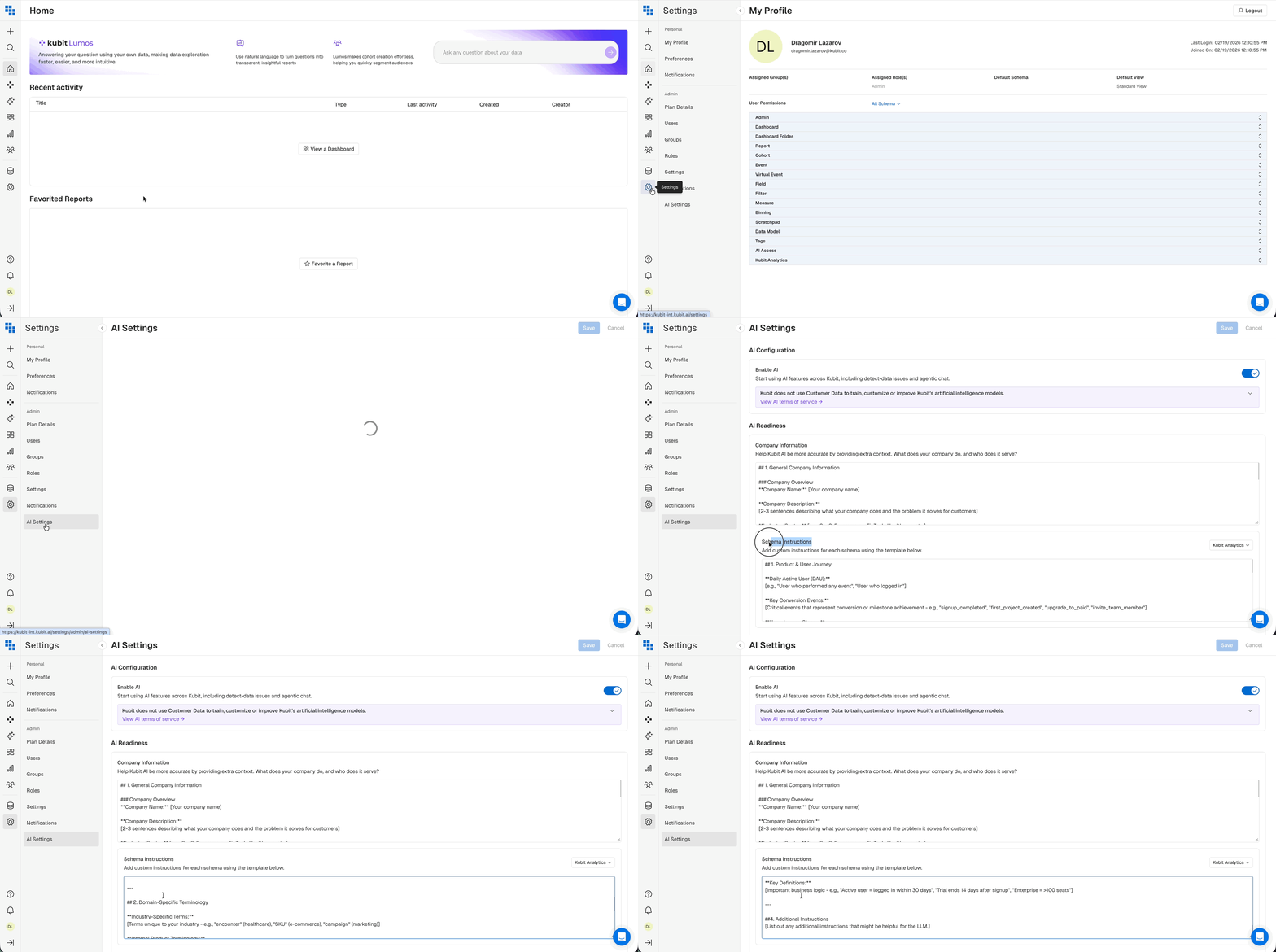
When you are done updating you Schema Instructions, don't forget to click Save at the top right corner of the page to apply all changes.
Company Information
This section contextualizes your data within your specific business environment. Help Kubit AI be more accurate by providing extra context such as: What does your organization do, and who does it serve?
We have provided you with a predefined company instructions template in your Kubit environment, ready for you to populate. It covers 9 key areas:
- Company Name
- Company Description
- Industry/Sector
- Primary Product/Service
- Target Customer
- Business Model
- North Star Metric
- Why This Metric
- Other Important Context
Instruction Tips:• Write one instruction per line, using quotes to specify exact names or phrases (e.g. Use "completed_purchase" event for any revenue analysis).
• Format instructions as direct statements of the desired behavior—be specific!
• Define key metrics using your event and field names to ensure accuracy. (e.g. an active user is defined as subject = "User" and event name = "login" or "sign up").
Please make sure to ONLY populate the existing Company Information template NOT replacing it with free text. Any additional information aside of the default 9 topics can be added at the end of the template and will be used for AI's reasoning analysis.
By Defining the "who" and "what" of your organization, this allows the Kubit Agents to prioritize metrics that matter most to your specific business model.
You can navigate to the "Company Information" section either through the Setting Menu > AI Settings on the left left-hand side navigation or through clicking on the AI readiness chip directly:
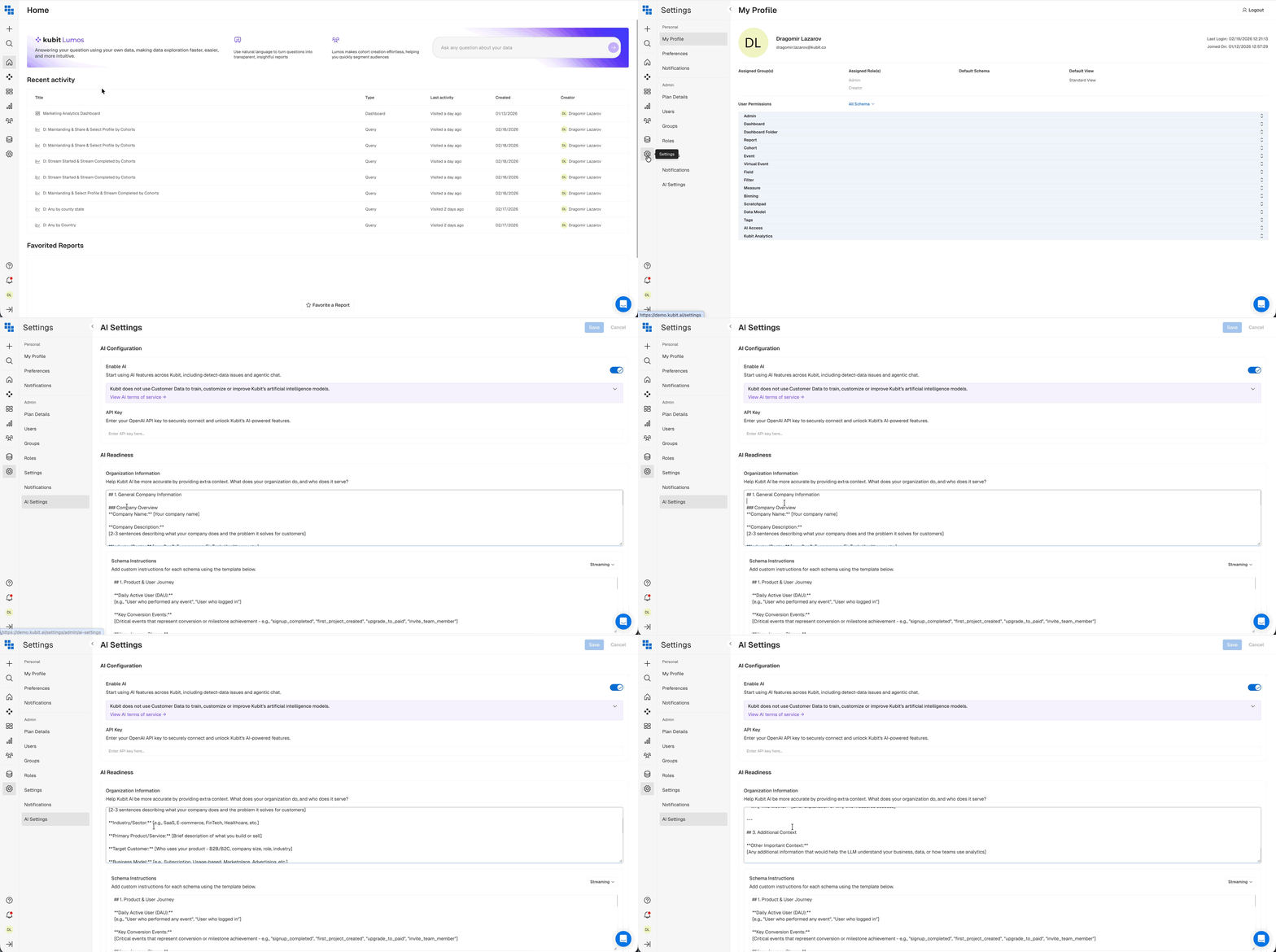
When you are done updating you Company Information, don't forget to click Save at the top right corner of the page to apply all changes.
Events
For behavioral analytics, the AI must understand what each user action represents. This pillar tracks the documentation and naming of your Events. Ensure every event has a human-readable description and proper tag categorization.
We have now Kubit’s AI Data Dictionary feature which streamlines your workflow by automatically suggesting descriptions and tags, significantly reducing the time spent on manual documentation.
How to Use It
- Access the Dictionary: Click on the Dictionary icon in the sidebar and navigate to the “Events” tab or click on the "Events" tile directly from the AI Readiness Chip
- Generate Metadata: For any event missing a description or tag click the "AI Suggest" icon:

to see a proposed definition based on the metrics SQL logic, Event name, table name and key.
- Review: Make sure you review the AI output and reflect any changes if necessary.
You can also use the AI Data Dictionary to add description and tags across several events at the same time:
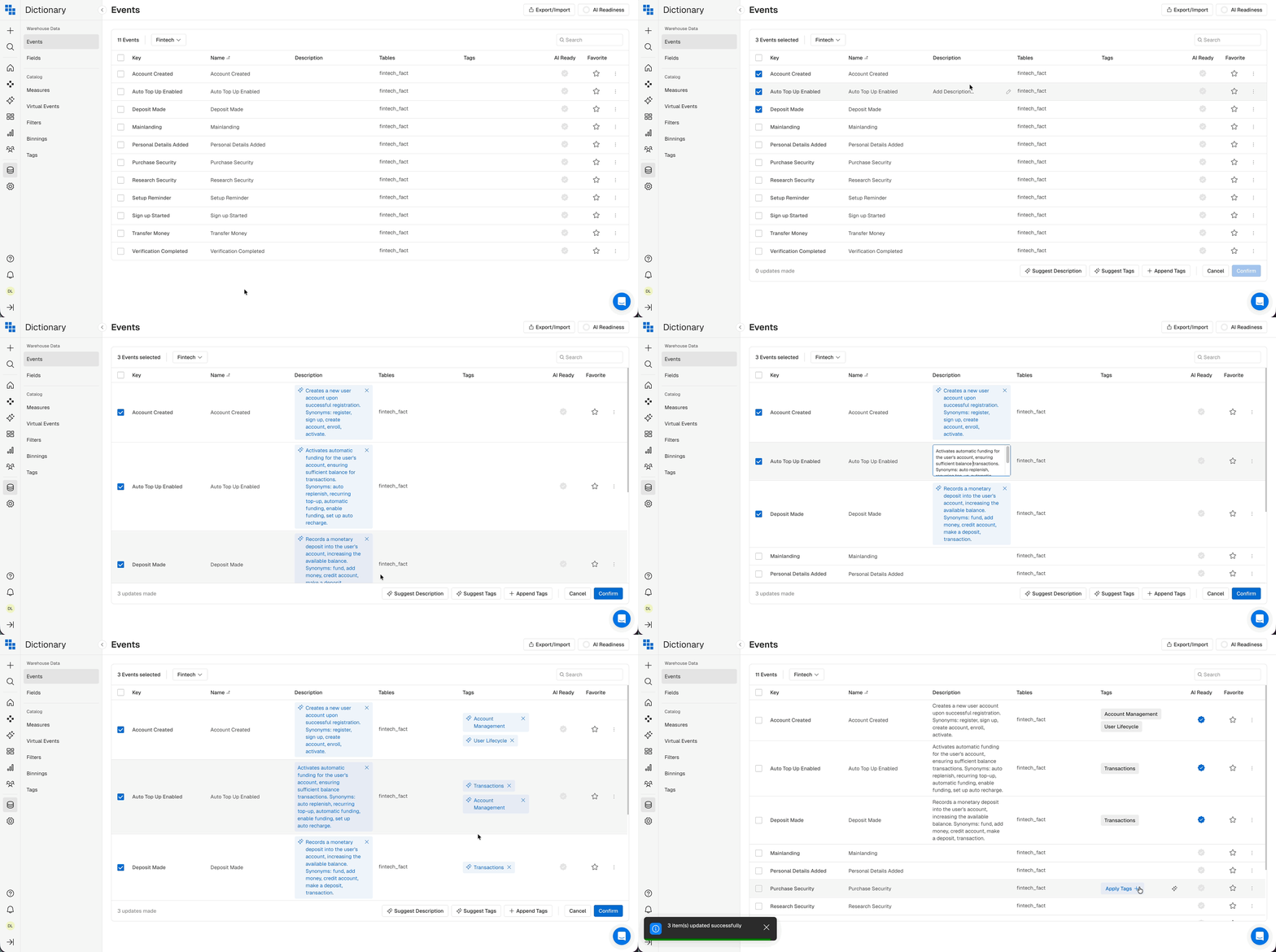
When you are done modifying your Events details, don't forget to click Confirm to apply all changes.
When an event gets its description, the system will reflect it as AI Ready and reflect it in the AI Readiness Chip:

Fields
The most granular level of readiness focuses on individual properties and columns. Ensuring field descriptions and tags are intuitive and their values are well-defined helps Kubit's AI Agents to deliver accurate data in the best way possible.
Using the AI Data Dictionary you can leverages AI to automate the tedious process of documenting your data, by writing clear, human-readable definitions and tags for you. As a result Kubit's AI Agents can provide accurate, trustworthy insights.
How it Works
- Access the Dictionary: Click on the Dictionary icon in the sidebar and navigate to the “Fields” tab or click on the "Fields" tile directly from the AI Readiness Chip
- Generate Metadata: For any field missing a description or tag click the "AI Suggest" icon:
to see a proposed definition based on the metrics SQL logic, Field name, table name and key.
- Review: Make sure you review the AI output and reflect any changes if necessary.
You can also use the AI Data Dictionary to add description and tags across several events at the same time:
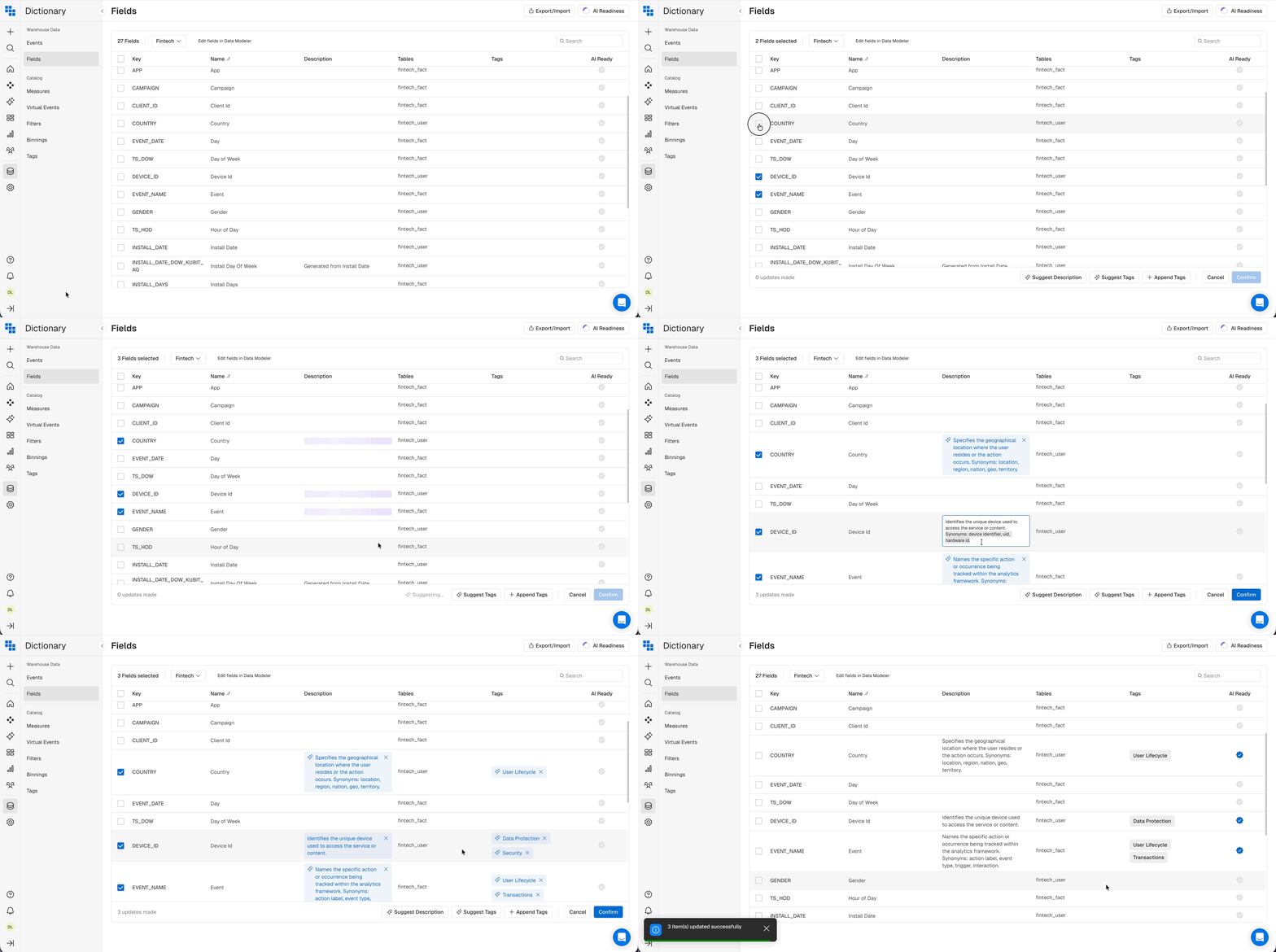
When you are done modifying your Fields details, don't forget to click Confirm to apply all changes.
When an field gets its description the system will reflect it as AI Readyand reflect it in the AI Readiness Chip:
Virtual Events
For high-impact event analytics, the AI must comprehend the intent behind every attendee interaction. This pillar focuses on the documentation and naming of your Virtual Events. It is essential that every event trigger includes a human-readable description and is organized under the correct engagement category.
To simplify this, Kubit’s AI Data Dictionary now streamlines your Virtual Events workflow by automatically suggesting descriptions and tags for them This significantly reduces the manual effort of mapping out attendee journeys, allowing you to focus on optimizing the event experience rather than managing spreadsheets.
How to Use It
-
Access the Dictionary: Click on the Dictionary icon in the sidebar and navigate to the “Virtual Events” tab or click on the "Virtual Events" tile directly from the AI Readiness Chip
-
Generate Metadata: For any event missing a description or tag click the "AI Suggest" icon:
To see a proposed definition based on the metrics SQL logic, Virtual Events name, table name and key.
- Review: Make sure you review the AI output and reflect any changes if necessary.
You can also use the AI Data Dictionary to add description and tags across several events at the same time:
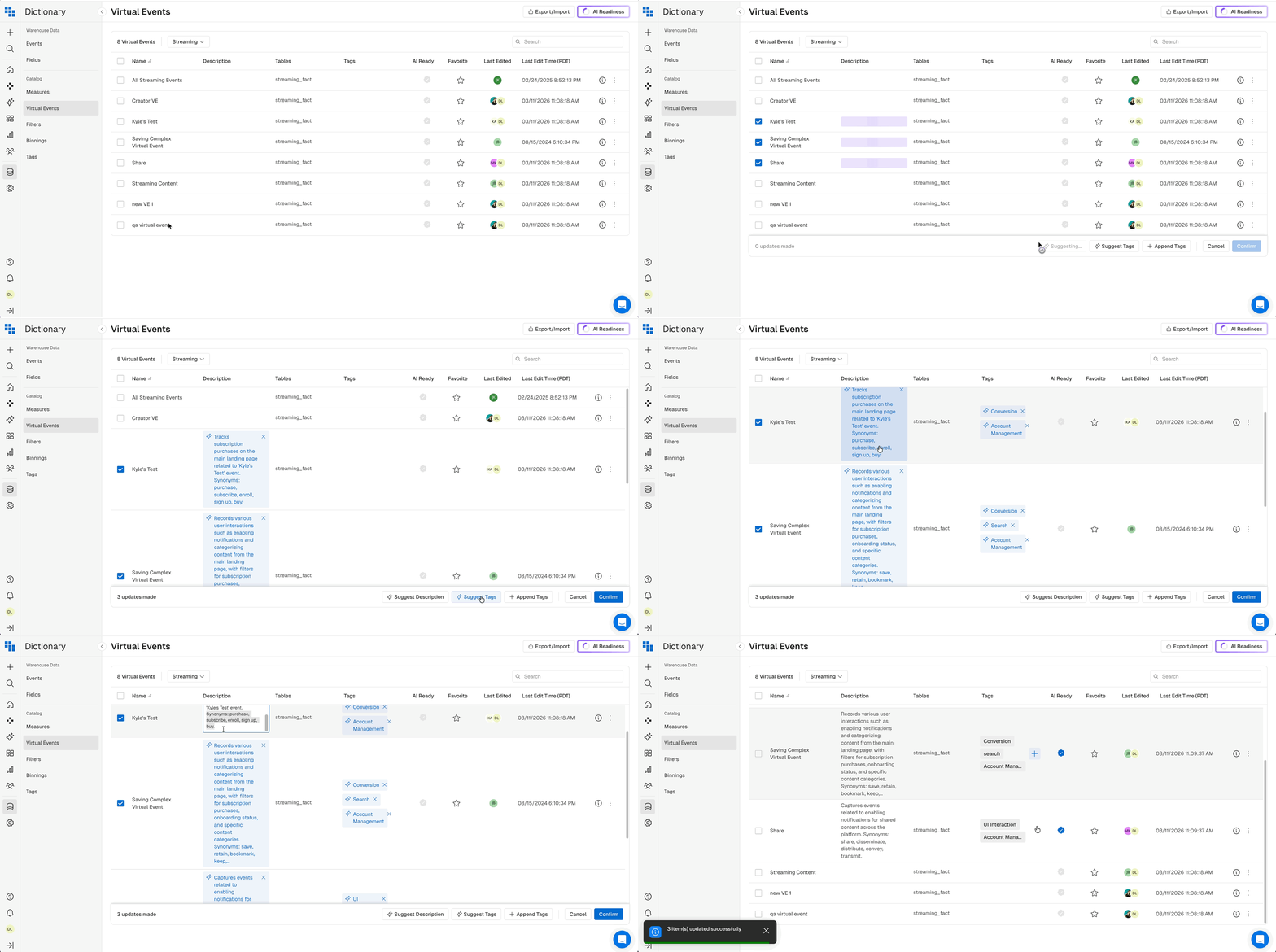
When you are done modifying your Virtual Events details, don't forget to click Confirm to apply all changes.
When an event gets its description the system will reflect it as AI Readyand reflect it in the AI Readiness Chip:
Cohorts
To unlock deep attendee insights, the AI must understand the shared characteristics of your audience segments. This pillar tracks the documentation and naming of your Cohorts - the specific groups of users defined by their behavior, characteristics and time periods. Ensure every cohort has a human-readable description and is categorized by its strategic value.
How to Use It*
-
Access the Dictionary: Click on the Cohort Icon in the sidebar and navigate to the “View Cohorts” tab or click on the "Cohorts" tile directly from the AI Readiness Chip
-
Generate Metadata: For any event missing a description or tag click the "AI Suggest" icon:
To see a proposed definition based on the metrics SQL logic, Cohorts name, table name and key.
- Review: Make sure you review the AI output and reflect any changes if necessary.
You can also use the AI Data Dictionary to add description and tags across several events at the same time:
When you are done modifying your Cohort details, don't forget to click Confirm to apply all changes.
When a cohort gets its description the system will reflect it as AI Readyand reflect it in the AI Readiness Chip:
Understanding Your AI Readiness Score
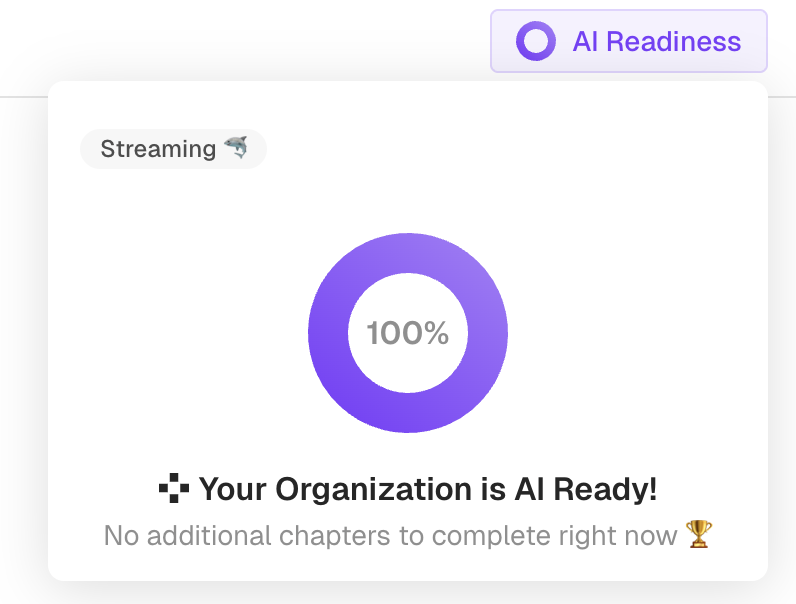
Progress Percentage: The central dial represents your overall AI Readiness score. As you complete items in each category, this percentage will increase.
Task Tracking: Each pillar displays the number of remaining tasks required to reach 100% readiness.
Continuous Improvement: AI Readiness is not a one-time setup; as your data evolves, you should revisit these pillars to maintain high-fidelity analysis.
Updated 8 months ago